Highway Racing Settings & FPS for Smooth Highways
Keep frame rate stable in dense traffic so near-miss timing stays readable.
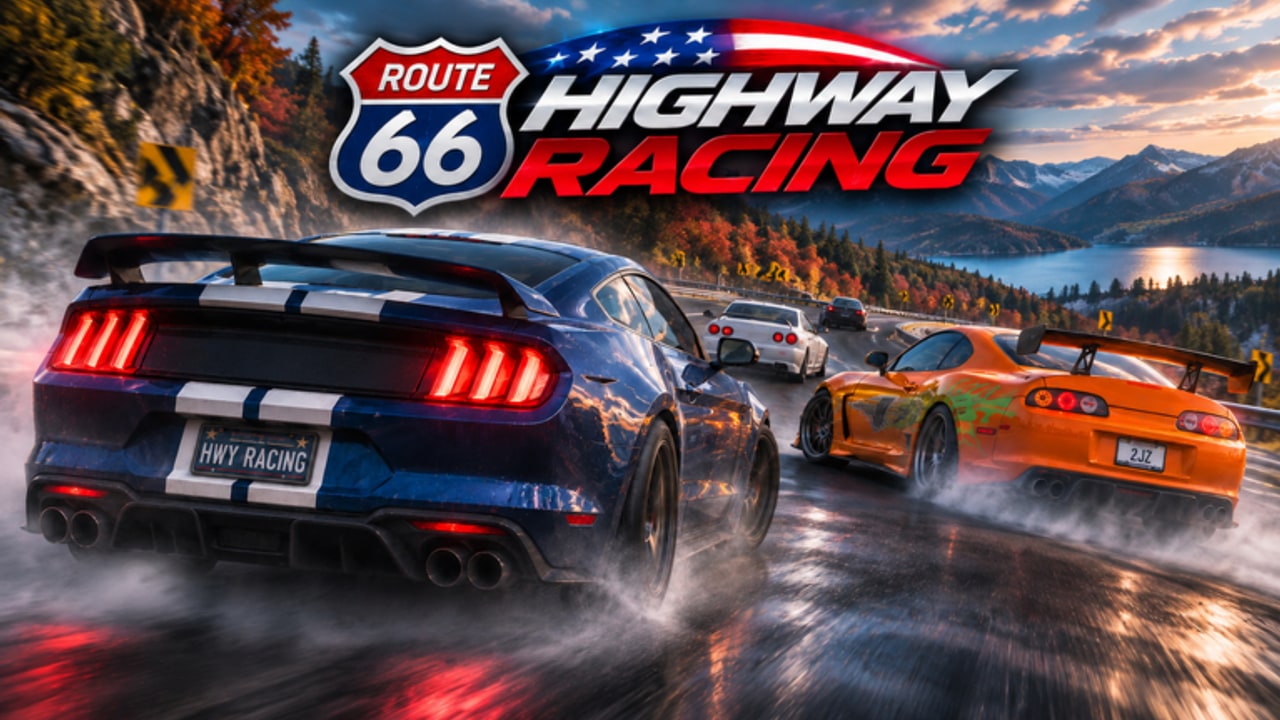
Low FPS turns Highway Racing from a precision interstate sim into a slideshow. Dense AI packs, player cars in ~10-player servers, particle trails, and high Graphics Quality stack until your device cannot draw frames fast enough. When frames drop, lane edges blur, brake lights arrive late, and the near-miss window you practiced in Near Miss Combo becomes guesswork. This guide focuses on practical Settings and performance habits—in-game and Roblox client—so weaving stays readable.
Pair it with Controls for input comfort, Traffic Weaving for lane craft that assumes a stable frame time, and Getting Started if menus still eat your first sessions. Official links and Discord invites live on the Wiki hub.
Why FPS matters more here than in casual Roblox games
Highway Racing pays Cash every second while you drive and resets combo chains on a single touch. Both systems demand timely perception:
- Near-miss gaps close in fractions of a second at 200–300+ MPH
- Feather brakes need frame-accurate throttle feel
- Camera micro-adjusts only help if the scene updates smoothly
- Race-meet pressure already taxes attention; stutter multiplies tilt
At 60 FPS you get roughly 16 ms per frame. At 30 FPS that budget doubles—and your hands still expect the old timing. Many “I keep clipping AI” complaints are half skill, half a client that cannot show the gap in time.
Diagnose before you nuke every slider
Separate problems so you do not fix the wrong one:
| Symptom | Likely cause | First test |
|---|---|---|
| Whole scene and camera feel choppy | Low local FPS | Lower Graphics Quality to Manual mid settings |
| Camera smooth, other players teleport | Ping / server lag | Rejoin a quieter public server |
| Fine in empty stretches, dies in dense packs | GPU/CPU spike under traffic | Drop quality + reduce effects; avoid max cars on screen |
| Only after long sessions | Heat / thermal throttle | Short breaks, cooler surface, close background apps |
On PC, Shift + F5 opens Roblox Performance Stats so you can watch FPS versus ping. Mobile players judge by feel: if steering feels late in traffic but chat is instant, prioritize graphics cuts.
Roblox Settings that actually move the needle
Open the Roblox menu (Esc on keyboard, or the Roblox logo button) → Settings:
- Set Graphics Mode to Manual (Automatic reacts late in busy highway packs).
- Lower Graphics Quality a few notches, then retest in dense traffic—not in an empty lobby.
- If your monitor supports it, raise Maximum Framerate so capable PCs are not stuck at a soft 60 cap while still targeting a stable number you can hold.
- Disable unused accessibility overlays that add post-processing if you do not need them.
Rule of thumb bands:
- 1–3 — older phones, budget laptops, thermal-limited devices
- 4–6 — most players during serious combo farms
- 7–10 — only if FPS stays locked while traffic walls appear
Pretty highways do not pay Cash. Clean timing does.
In-experience checks: Settings, effects, and quieter sessions
Highway Racing may expose its own Settings panel for camera shake, trail intensity, or other effects. Open every gear / settings entry the HUD offers and:
- Turn down or off non-essential visual effects that bloom during high-speed passes
- Prefer a camera distance you already validated in Controls—extreme hood views hide adjacent bumpers and force last-second swerves
- Mute or simplify UI clutter only if it helps you focus; never hide speed or combo feedback you rely on
Private servers and low-player sessions
Some Roblox experiences advertise a free private server or VIP-style instance for smoother FPS. On Highway Racing, treat that as optional and menu-dependent:
- Check the experience page and in-game Settings for any private server, VIP, or create-server control the live build exposes.
- If a free (or cheap) private option is available and you need solo practice, use it for weaving drills and nametag attempts without extra player cars stacking draw calls.
- If that control is missing, greyed out, or paid-only on your account, do not stall—lower Graphics Quality, reduce effects, and join the least crowded public server (~10 player cap still means a full lobby is heavier than a half-empty one).
Official tip language often mentions private servers for FPS relief; availability can differ by platform, region, or API flags. Your fallback path is always graphics + quieter publics + shorter sessions.
Mobile vs PC performance habits
PC
- Close browsers, Discord hardware acceleration, and launchers before GOAL’s 2x window
- Prefer wired or strong 5 GHz Wi-Fi so you are not misreading ping as FPS
- Update GPU drivers; play plugged in on laptops with High Performance power mode
- Keep background downloads paused during long interstate farms
Mobile
- Drop Graphics Quality earlier than ego suggests; thumbs already add input tax
- Disable battery savers that throttle mid-run, then manage heat with short breaks
- Lower target speed bands from Traffic Weaving until frames feel even
- Avoid charging-and-playing in a case that traps heat during dense packs
Gamepad on either platform
Soft trigger modulation needs consistent frame pacing. If brake feathers feel sticky, fix FPS before blaming the pad mapping in Controls.
Settings checklist before a serious run
- Claim focus time—FPS fixes matter most during money routes and nametag pushes.
- Manual graphics at the highest stable preset in dense traffic.
- Effects minimized if the game offers toggles.
- Private-server option checked once; otherwise pick a low-population public.
- Warm up two clean minutes so you judge FPS under real weaving, not a parked lobby.
- Only then chase near-miss chains or meet flexes.
How stable FPS feeds skill pages
- Traffic Weaving assumes you can see lane width early enough to claim it.
- Near Miss Combo assumes the bumper flash is timed, not guessed between stutters.
- Getting Started players often blame “bad cars” when the real issue is a maxed Automatic graphics preset on a phone.
If your scratch rate spikes only on busy nights, test the same car on lowered settings before buying another chassis.
Mistakes that keep FPS broken
- Leaving Graphics Mode on Automatic forever
- Testing quality in an empty stretch, then raging in a traffic wall
- Running Discord streams, browser tabs, and Roblox on integrated graphics simultaneously
- Waiting for a private server that is not offered instead of cutting effects today
- Chasing 240 FPS vanity on hardware that cannot hold 50 in dense AI
- Ignoring heat: a fast first minute and a melted tenth minute looks like “random” clipping
Related pages
Smooth frames will not replace lane discipline, but choppy frames will sabotage it. Set Manual graphics, cut effects you do not need, use a private or quieter server when the game offers one, and keep Highway Racing’s near-miss timing in the readable zone where practice actually sticks.
Frequently Asked Questions
Quick answers to the most common questions.
Why does Highway Racing feel laggy in dense traffic?
Dense AI packs and full ~10-player servers raise render load. Switch Graphics Mode to Manual, lower quality in real traffic, and cut non-essential effects.
Does Highway Racing have a free private server for FPS?
Check the experience page and in-game Settings for any private-server or VIP option. If none is available, lower graphics and join a quieter public server instead.
How does low FPS hurt near misses?
Dropped frames delay what you see, so gap timing and feather brakes arrive late—exactly when one touch resets the combo chain.
Should mobile players use the same graphics as PC?
Usually no. Mobile should bias lower Graphics Quality and slightly slower speed bands so thumbs and heat limits do not erase weaving reads.
Is choppy camera the same as high ping?
Not always. Choppy camera points to local FPS; teleporting other players with a smooth camera points more toward network or server delay.